
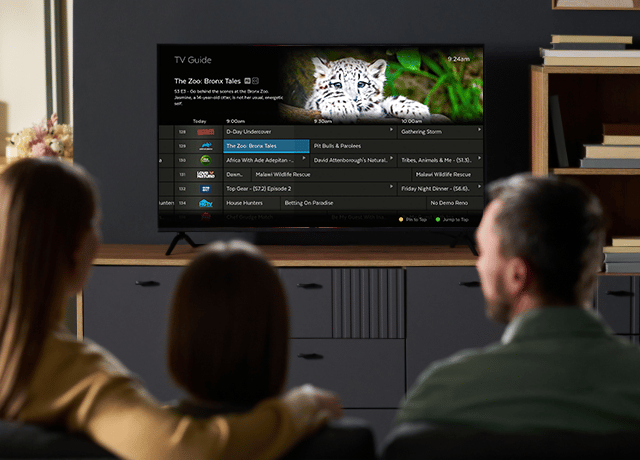

You've got Fetch set up and ready to go — but are you really getting the most out of your Smart TV Guide?
Fetch's Smart TV Guide does far more than show what’s on tonight. As a central hub, it gives you greater control over what you watch, when you watch it and how you discover new content in one place.
Here are five useful features built right into the Fetch's Smart TV Guide that will completely change how you watch your favourite shows.
1. Catch up on missed TV shows with Start-over & Reverse Watch
Missed the first half of a show? Use the Start-over and Reverse Watch features to watch from the beginning. Reverse Watch also lets you travel back in time to rewatch certain programs broadcasted over the last 48 hours.
How to use:
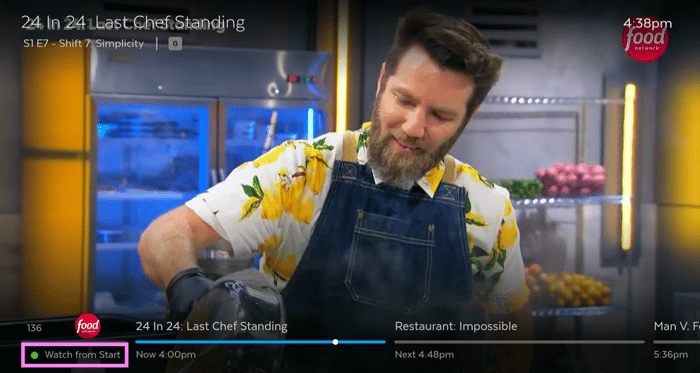
Start-over - Select any program of your choice on the TV Guide and simply tap the green “🟢” button on your Fetch remote to watch from the start.
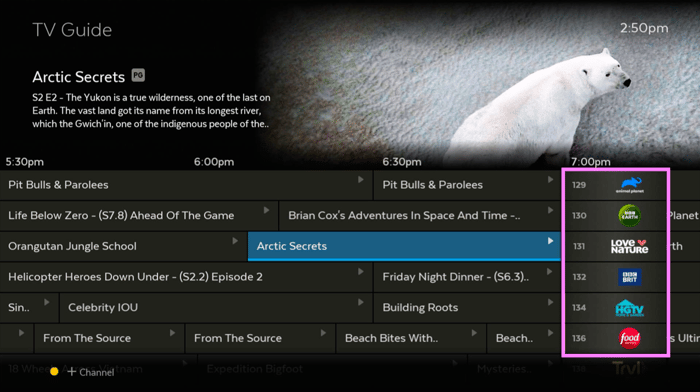
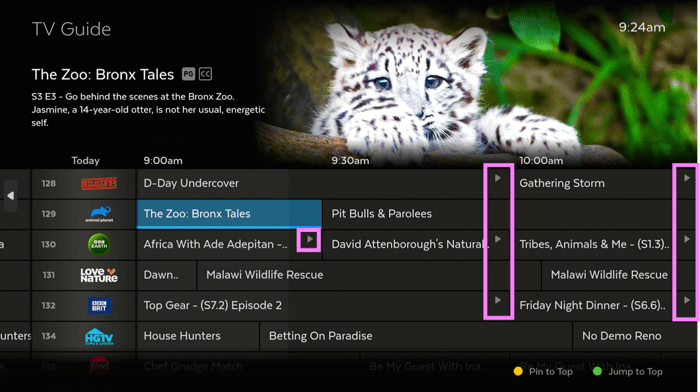
Reverse Watch - Simply open the TV Guide and press the left arrow on your remote to scroll back through the schedule. This will move your channel listings to the right. Any program marked with a “▶️” icon can be streamed instantly from the start.
💡 Quick Tip: For more shortcuts, press the “🔵” button to pull up a sidebar of remote control tricks.
Watching live TV on Fetch is easy to pause, rewind and resume whenever you need to step away. A progress bar buffers right below the program info so you can replay missed moments or fast-forward through the program.
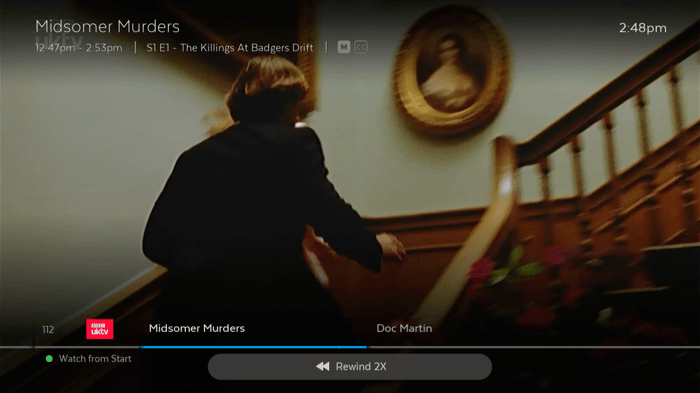
3. Watch TV from the future
No more missing footy, a big reality finale, or live ceremonies again. Set reminders on upcoming shows in advance so you can plan what to watch next. Fetch will automatically display an on-screen notification before your show is about to start.
You can also browse future programs for up to 14 days ahead to start watching instantly.
How to use:
Use the right arrow to scroll forward on the TV Guide and select any program marked with a play “▶️” icon to watch scheduled shows for the next 2 weeks.
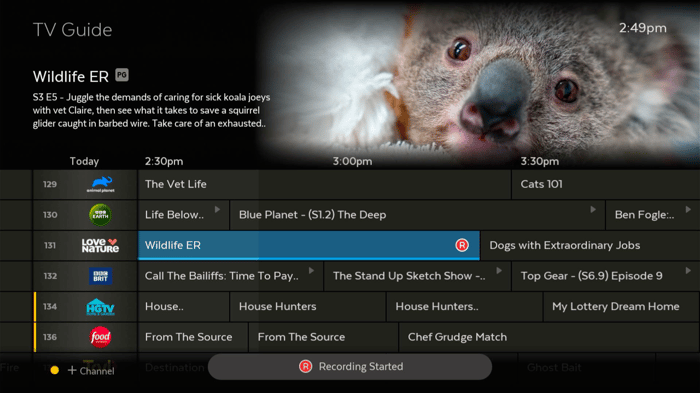
Build your own library of entertainment with scheduled recordings right from the TV Guide. The Fetch Mighty holds a massive 1TB hard drive that can store up to 585 hours of content, giving you plenty of space to save movies, sports, documentaries and even entire TV series.
How to use:
Simply press the record “R” button on your selected program or double tap it to record the whole TV series. You can even record up to 5 channels while watching your own shows.
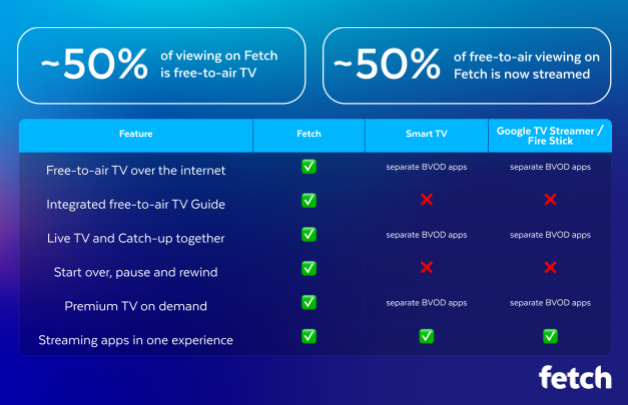
Having poor antenna reception is the worst. Fetch solves this by integrating free-to-air channels like ABC, SBS, Seven, Nine, and Ten directly into the Smart TV Guide over the internet. That means you can easily stream live TV without an actual antenna or even when an antenna connection isn’t available.
This is where Fetch goes beyond a typical Smart TV or streaming stick. Instead of relying on your TV's antenna connection or switching between different apps, Fetch brings your free-to-air channels into the same TV Guide as the rest of your entertainment.
See how Fetch makes TV easier for yourself. Get better control of how you watch with smarter TV Guide features now.
💡Quick Tip: For the latest access, check whether your Fetch software version is updated under Menu > Manage > Settings > Device Info.